
Migrating OpenClaw from an Ubuntu Droplet to a Local Mac
We recently moved a live OpenClaw agent off an Ubuntu droplet and onto a local Mac that now serves as a dedicated agent workstation. The surprising part was not installing OpenClaw on macOS. The hard part was preserving the long-lived state that made the agent useful in the first place: WhatsApp sessions, Slack auth, cron definitions, Google client secrets, 1Password service-account config, and the runtime session files OpenClaw had already accumulated.
One thing to be explicit about: macOS-only channels do not “migrate” from Ubuntu. We added iMessage later through BlueBubbles, and that was a separate Mac-side bring-up after the core Ubuntu state had already landed cleanly on the destination machine.
This guide is the runbook I wish we had before we started. It is based on the real migration path we executed, but everything here is sanitized. Hostnames, IP addresses, usernames, email addresses, and secrets have been replaced with placeholders.
If you are moving an agent from a cloud Ubuntu box to a local Mac, this is the sequence I would follow now.
Migration principle
Move the runtime state, not just the repo. The cutover only works if credentials, browser identity, cron definitions, session archives, and machine-specific config survive with it.
The System Topology
We ended up with three machines and two macOS users:
- Ubuntu source droplet: the old OpenClaw runtime, usually rooted under
/root/.openclaw - Main Mac: your everyday workstation that can SSH into both the Ubuntu source and the Mac agent box
- Agent box Mac: the destination Mac that will run OpenClaw full-time
- Agent box admin user: your admin macOS account for Homebrew, system settings, and remote access
- Agent box agents user: a separate standard macOS account for the actual AI agent identity and browser state
Each diagram includes a publication-ready SVG and a collapsible Mermaid source block so the flow stays editable in Git.
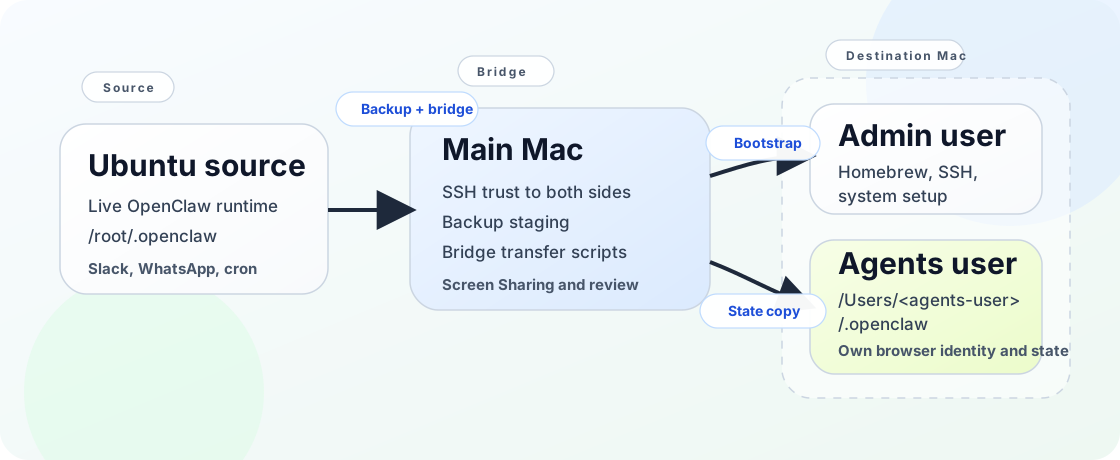
agents login as its own machine identity.
View Mermaid source
flowchart LR
  A["Ubuntu droplet<br>/root/.openclaw"] -->|backup + bridge| B["Main Mac<br>SSH trust to both sides"]
  B -->|bootstrap SSH + Screen Sharing| C["Agent box admin user<br>system setup"]
  B -->|bridge scripts| D["Agent box agents user<br>/Users/<agents-user>/.openclaw"]
  D --> E["OpenClaw gateway<br>Slack + WhatsApp + cron"]
What Actually Matters to Preserve
Do not think about this as “move the repo.” Think about it as “move the runtime state.”
Critical state to preserve
~/.openclaw/openclaw.json~/.openclaw/.env.1password~/.openclaw/credentials/whatsapp/~/.openclaw/cron/jobs.json~/.openclaw/secrets/google-client-secret.json~/.openclaw/identity/
Important state that saves time
~/.config/gogcli/~/.openclaw/agents/~/.openclaw/devices/~/.openclaw/credentials/slack-*.json~/.openclaw/credentials/whatsapp-*.json
State I would not copy
~/.config/gh/- your Ubuntu private SSH key
- your personal macOS SSH key for admin use
- the entire Ubuntu home directory unless you have no better inventory
For GitHub on the destination Mac, create a new SSH key and run gh auth login again under the destination user. That is cleaner than copying the VPS private key.
State you must create fresh on the Mac
~/Library/Messages/plus an active Messages.app sign-in under theagentsuser~/Library/Application Support/bluebubbles-server/config.db- macOS privacy permissions such as BlueBubbles Full Disk Access and Messages automation approval
- browser profiles and Playwright state that live under the destination user’s macOS home
- saved browser auth state such as
~/.browser-state/<agent>.json - per-agent browser profile directories such as
~/.playwright-profiles/<agent>/
Those are destination-side concerns. They did not exist on the Ubuntu droplet, so no amount of copying /root/.openclaw will produce them.
The Migration Order That Worked
- Prepare the destination Mac under the admin user.
- Bootstrap SSH from the main Mac to the destination Mac.
- Log in to the
agentsmacOS user locally once. - Set up the
agentsuser’s GitHub identity separately. - Copy OpenClaw state from Ubuntu to the destination Mac.
- Install OpenClaw on the destination Mac.
- Repair stale Linux path references inside OpenClaw state.
- Restart the gateway and validate Slack and WhatsApp.
- Only after validation, decommission the droplet.
That last part matters. We had a point where openclaw status looked healthy, Slack and WhatsApp showed as connected, and replies still failed at runtime because old session files were still trying to write to /root.
Why the First Attempt Failed
On the first pass, the migration looked good:
- the full
~/.openclawdirectory copied over openclaw statusshowed Slack and WhatsApp asON- the gateway launched on the Mac
But the agent still failed to reply. The actual runtime error was:
ENOENT: no such file or directory, mkdir '/root'The issue was not Slack auth. It was stale path references embedded in migrated session state. Some of the copied files still pointed at Linux paths like /root/.openclaw, so inbound messages crashed before delivery.
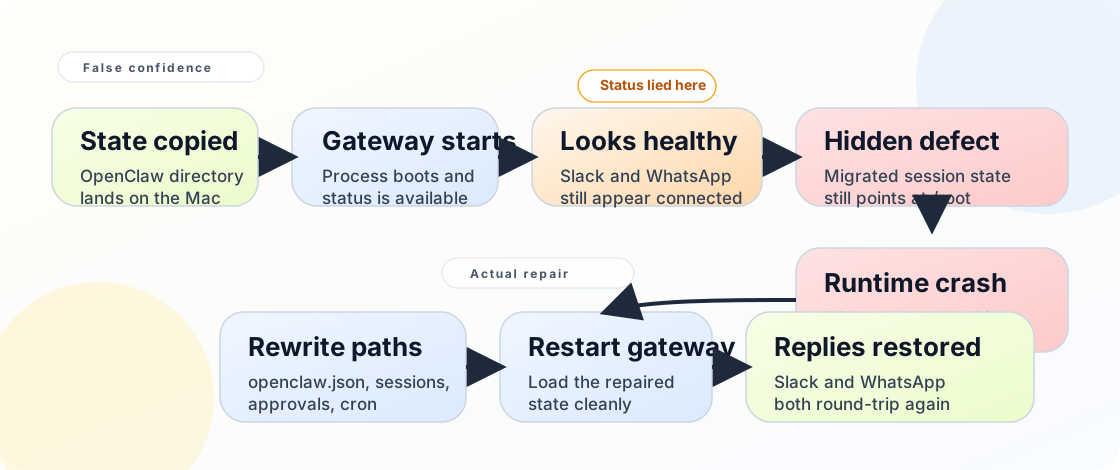
View Mermaid source
flowchart TD
  A["State copied to Mac"] --> B["Gateway starts"]
  B --> C["Slack + WhatsApp appear connected"]
  C --> D["Inbound message arrives"]
  D --> E["Runtime still references the old Linux root"]
  E --> F["ENOENT: mkdir '/root'"]
  F --> G["Rewrite migrated state to the new macOS root"]
  G --> H["Restart gateway"]
  H --> I["Replies resume"]
The companion script scripts/07-rewrite-openclaw-paths-for-macos.sh exists specifically because of that failure.
Step 1: Prepare the Agent Box Mac
Run the admin bootstrap script on the destination Mac as your admin macOS user:
What it does:
- installs Homebrew if missing
- installs
git,gh,node,python, andtmux - enables FileVault and the firewall
- disables sleep for an unattended workstation
- creates the
agentsstandard user if needed - installs
@anthropic-ai/claude-codeand@openai/codex - enables Screen Sharing
What it cannot do automatically:
- enable Remote Login in macOS Sharing settings
- complete
gh auth login - create the first GUI session for the
agentsuser
That first local GUI login matters. In our migration, Screen Sharing user switching was flaky until the agents account had completed one real login on the Mac itself.
Step 2: Bootstrap SSH from the Main Mac
Run this on your main Mac:
This script fixes several problems we hit in the original version:
- it does not assume only
id_ed25519exists - it can fall back to
id_rsa - it rewrites
~/.ssh/configwith explicit host aliases - it adds the main Mac public key to the destination Mac’s
authorized_keys - it verifies a non-interactive SSH round-trip at the end
That last step is important. A script that merely copies keys is not good enough. It must prove SSH works without prompting.
It also does not copy the main Mac’s private key to the destination Mac by default. If the destination admin user needs GitHub access, generate a fresh key on that Mac or opt in explicitly to key sharing with full awareness of the trade-off.
Why .local hostnames were a trap
Bonjour hostnames are convenient until they are not. If the destination Mac’s .local hostname is flaky, rerun with:
AGENT_BOX_HOST="your-ip-or-tailnet-name" bash scripts/02-quick-start-main-machine.shIn our case, the failure was not the hostname itself. The deeper issue was that the original script copied keys to the Mac but never actually authorized the main Mac’s key for login.
Step 3: Set Up the agents User
Log in once to the agents user locally on the destination Mac. Then run:
This sets up:
~/.npm-global- Homebrew in the
agentsshell path @anthropic-ai/claude-codeplaywrightand Chromium
If this agent will also handle iMessage, sign in to Messages.app under the agents user before touching BlueBubbles. We lost time by treating ~/Library/Messages/chat.db readability as proof that iMessage was ready. It was not. The real check was much simpler: Messages.app had to be signed in, online, and able to complete a real send/receive from that macOS user.
If your agent account needs its own GitHub identity, do not reuse the admin user’s key or gh session.
Browser automation is another Mac-side bootstrap
Playwright itself migrates fine as a package install. Browser auth state does not.
Treat browser automation the same way we treated BlueBubbles: as fresh destination state that must be created on the Mac after the agents user is live. In practice that meant:
- launch a headed browser session under the
agentsmacOS user - log into the sites the agent actually needs
- save the resulting auth state under the destination user’s home
- keep that state local and out of Git
The important point is operational, not tool-specific. Do not assume copied Linux cookies or browser profiles will become a reliable long-term macOS automation setup. Bring up the browser state fresh on the destination machine and prove one real automated navigation works before you declare the agent ready.
On our M1 agent box, we kept the reusable browser state under ~/.browser-state/ and per-agent Chromium profiles under ~/.playwright-profiles/<agent>/. The one-time bootstrap for Jay looked like this:
mkdir -p "$HOME/.browser-state" "$HOME/.playwright-profiles/jay"
"$HOME/.npm-global/bin/agent-browser-login" --agent jay --url https://google.com
That command opened a headed Chrome session for Jay. After logging into the required sites, we returned to the terminal and pressed Enter so the wrapper could save the auth state to ~/.browser-state/jay.json.
The quick verification step was:
"$HOME/.npm-global/bin/agent-browser-smoke" --agent jay --url https://example.comFor us, that smoke test was enough to prove the saved state loaded, Chromium could launch under the destination user, and Jay had a working browser automation baseline before we moved on to site-specific tasks.
Step 4: Bootstrap the Agent’s GitHub Identity
Run this as the agents user:
This script:
- sets
git config --global user.name - sets
git config --global user.email - generates a new
ed25519key if one does not exist - runs
gh auth login - verifies
ssh -T [email protected]
We intentionally used a new SSH key on the Mac instead of copying the Ubuntu key. That gave the agent the same GitHub identity, but not the same private key material.
Step 5: Copy OpenClaw State
There are two ways to do this.
Option A: direct copy from the agents user
Use this only if the agents account on the destination Mac already has SSH trust to the Ubuntu source.
Option B: bridge through the main Mac
This is the path we actually ended up using. It was better because:
- the main Mac already trusted the Ubuntu droplet
- the main Mac already trusted the destination Mac
- the
agentsuser did not need direct SSH access to the Ubuntu source
That bridge script copies:
~/.openclaw- optionally
~/.config/gogcli
It also reapplies restrictive permissions on the destination side.
Treat ~/.config/gogcli as “worth copying, but not guaranteed portable.” In many cases it saves a full Google re-auth flow. In some cases you will still need to re-authorize Gmail or Calendar on the new machine.
Step 5.5: Take a Separate Backup Before You Decommission Anything
Run this on the main Mac:
That gives you one more safety net outside the destination Mac itself. In our migration, having a separate local backup made the final decommission decision much easier.
Step 6: Install OpenClaw on the Destination Mac
The exact package or versioning flow will vary based on your OpenClaw install method, but the high-level sequence is:
eval "$(/opt/homebrew/bin/brew shellenv)"
export PATH="$HOME/.npm-global/bin:$PATH"
npm install -g openclaw
openclaw doctor --fix
The doctor --fix step mattered for us because the migrated config still contained an obsolete key under messages.tts.edge.
Step 7: Rewrite Linux Paths to macOS Paths
This was the decisive repair step.
Run:
What it rewrites:
~/.openclaw/openclaw.json~/.openclaw/agents/main/sessions/sessions.json~/.openclaw/exec-approvals.json~/.openclaw/cron/jobs.json- every
*.jsonlfile under~/.openclaw/agents/main/sessions/
It also:
- creates timestamped backups of any file it edits
- runs
openclaw doctor --fixif the CLI is present - searches for remaining references to the old Linux path
If your Ubuntu runtime used /home/ubuntu/.openclaw instead of /root/.openclaw, override the source root when you run it:
SOURCE_ROOT=/home/ubuntu/.openclaw TARGET_ROOT="$HOME/.openclaw" \
  bash scripts/07-rewrite-openclaw-paths-for-macos.sh
Step 8: Validate the Migration
Run:
This script checks:
- required directories exist
- the old Linux path does not remain in critical state
openclaw statusrunsopenclaw gateway statusruns
Then do manual probes:
- Send a Slack message to the migrated agent.
- Send a WhatsApp message to the migrated agent.
- If the Mac also hosts BlueBubbles, send an iMessage to the migrated agent.
In our migration, this was the only validation that really mattered. Slack and WhatsApp both had to receive and reply after the path rewrite. Once we added BlueBubbles, iMessage had to pass the same standard.
Step 8.5: Add iMessage on the Mac with BlueBubbles
This part is intentionally separate from the Ubuntu migration. Your droplet never had access to macOS Messages, so there is nothing to copy from Linux. Treat iMessage as a fresh Mac-side integration that you bring up only after Slack and WhatsApp are already healthy on the destination box.
We considered two routes:
BlueBubbles: richer feature set and the OpenClaw-recommended path for iMessageimsg: simpler legacy CLI, but being phased out
We used BlueBubbles.
The sequence that worked:
- Sign in to Messages.app under the
agentsuser and prove one real send/receive works. - Install BlueBubbles Server on the Mac.
- If Gatekeeper blocks the app because the build is signed but unnotarized, stop and make an explicit trust decision before overriding the warning.
- Grant Full Disk Access to BlueBubbles only. Do not grant it to Terminal,
node, or OpenClaw. - In BlueBubbles, use the manual setup path if OpenClaw is the only client. Firebase/Google is optional for a local Web API integration.
- Enable the Web API, set a strong password, and leave Private API disabled. We did not disable SIP.
- Point OpenClaw at the local BlueBubbles server and keep the webhook path explicit.
The OpenClaw-side shape looked like this:
"bluebubbles": {
  "enabled": true,
  "serverUrl": "http://127.0.0.1:1234",
  "password": "<bluebubbles-password>",
  "webhookPath": "/bluebubbles-webhook",
  "allowPrivateNetwork": true,
  "dmPolicy": "pairing",
  "groupPolicy": "allowlist"
}
That allowPrivateNetwork flag mattered for us because the BlueBubbles server lived on 127.0.0.1, and the initial OpenClaw probe blocked loopback until we set it explicitly.
One more version-specific gotcha: after mutating BlueBubbles config on OpenClaw 2026.3.28, we always ran openclaw config validate immediately. We hit a case where the CLI reintroduced a legacy enrichGroupParticipantsFromContacts key, and that blocked the gateway reload until we removed it.
The final BlueBubbles validation was exactly the same as every other channel: send a real iMessage, approve pairing if prompted, and confirm the agent replies.
The Companion Scripts
All scripts for this runbook are in scripts/.
| Script | Where to run it | Purpose |
|---|---|---|
01-quick-start-agent-box-admin.sh | destination Mac admin user | system prep, Homebrew, tools, sharing |
02-quick-start-main-machine.sh | main Mac | SSH bootstrap to the destination Mac |
03-quick-start-agents-user.sh | destination Mac agents user | npm-global, Claude Code, Playwright |
04-bootstrap-agent-github.sh | destination Mac agents user | new SSH key + gh auth login |
05-migrate-openclaw-state-direct.sh | destination Mac agents user | direct SSH copy from Ubuntu |
06-bridge-openclaw-state.sh | main Mac | bridge copy from Ubuntu to the destination Mac |
07-rewrite-openclaw-paths-for-macos.sh | destination Mac agents user | repair stale /root/.openclaw references |
08-verify-openclaw-migration.sh | destination Mac agents user | post-migration verification |
09-backup-openclaw-from-source.sh | main Mac | make a second local backup before decommissioning |
There is also a scripts/README.md with the same order in a shorter form.
BlueBubbles/iMessage setup is intentionally manual in this package because it depends on macOS GUI state, Messages activation, TCC permissions, and your own trust decision about the app binary.
Browser automation bootstrap is also intentionally manual because login state, cookies, and saved profiles are destination-local secrets that need a real GUI session at least once.
Redaction and Security Rules
If you turn your real migration notes into a reusable document, sanitize these categories before publishing:
- public IP addresses
.localhostnames- personal email addresses
- Apple IDs used for Messages sign-in
- phone numbers used for WhatsApp probes
- Slack user IDs and channel IDs
- BlueBubbles server URLs, passwords, and webhook paths
- Google OAuth client IDs
- 1Password service-account tokens
- anything under
credentials/,identity/, or.env.*
I also recommend never publishing raw copies of:
openclaw.json.env.1passwordgoogle-client-secret.json~/Library/Messages/chat.db~/Library/Application Support/bluebubbles-server/config.db- any real session archive under
agents/main/sessions/
Use placeholders like:
ubuntu-openclaw.example.comagent-box.localadminuseragents[email protected]
The Screen Sharing Quirk We Hit
This migration had one annoying macOS wrinkle unrelated to OpenClaw itself.
Screen Sharing worked reliably to the admin user’s desktop first. Switching into the agents GUI session remotely was flaky until the agents account had completed one real local login. If the remote session went black during user switching, the shortest path forward was:
- log into the
agentsuser locally on the Mac - let the desktop initialize completely
- reconnect Screen Sharing
I would not burn a lot of time fighting that remotely on first boot.
Decommission Checklist for the Ubuntu Droplet
Do not destroy the droplet until all of this is true:
- the full OpenClaw state exists on the destination Mac
- the workspace repository is cloned on the destination Mac and up to date
- you have a second offline or local backup
- Slack replies work
- WhatsApp replies work
- if BlueBubbles is configured, iMessage replies work
- cron jobs are present
- the gateway starts cleanly after a restart
If you want the safest cutover, power the droplet off for 24 hours before deleting it. If the local Mac handles live traffic for a day without surprises, the droplet is no longer your runtime.
What I Would Do Differently Next Time
- Inventory state before touching the destination Mac.
- Assume the bridge copy will be easier than direct SSH from the destination user.
- Treat
openclaw doctor --fixas mandatory after migration. - Search for stale Linux roots inside all session state before sending the first real message.
- Treat BlueBubbles as a fresh Mac-only bring-up, not as migrated Ubuntu state.
- Grant Full Disk Access to BlueBubbles, not Terminal,
node, or OpenClaw. - Validate with live Slack, WhatsApp, and optionally iMessage probes before declaring success.
That is the sequence I would trust now.
This article is open source. Found an error? Have a different perspective? Open an issue or submit a PR — we welcome contributions from the community.